
Shared online in 2024“Six Flags after Hurricane Helene”
Before sharing a post, trusting a call, or sending money, check who it came from and whether the claim is supported. Use the steps below to investigate images, video, audio, and messages.

Why the claim felt believable: the post also showed a real-looking weather closure. A true detail can make an unrelated old photograph feel current.
An urgent request can wait while you check who sent it. Do not share the post, send money, or give out personal information until you have checked the claim.
If someone says they are a relative or friend, call them on a number you already trust.
Open the full post and follow any credits to the original upload. Look for the complete recording and its first publication date.
Compare the caption’s date and location with other reporting. Search a distinctive spoken sentence in quotation marks.
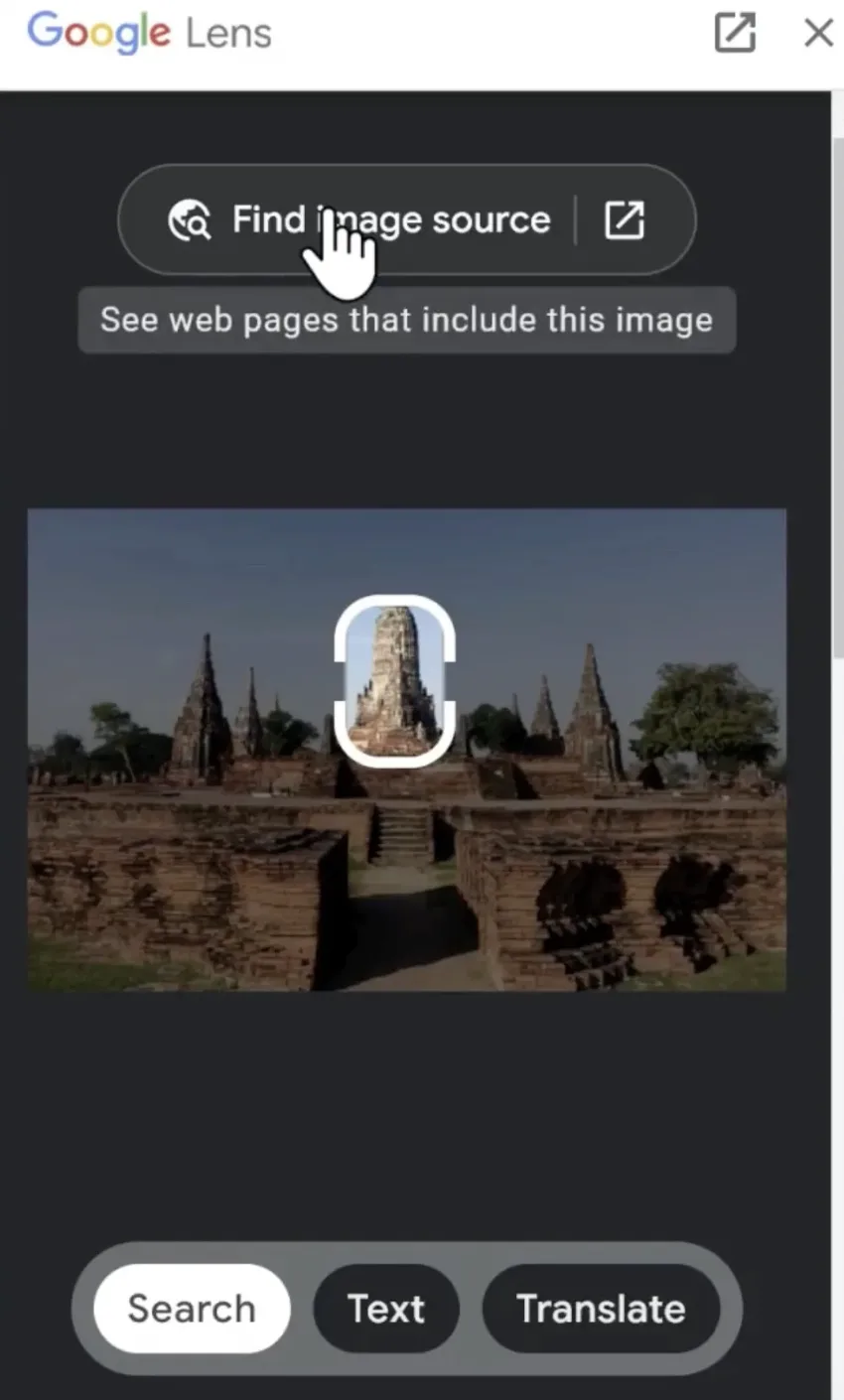
Save the clearest copy or take a screenshot. Open the Google app, tap the Lens icon, select the image, and tap “Find image source.” Crop away app borders or captions if they hide the image. Look for the earliest credible use and its original description.
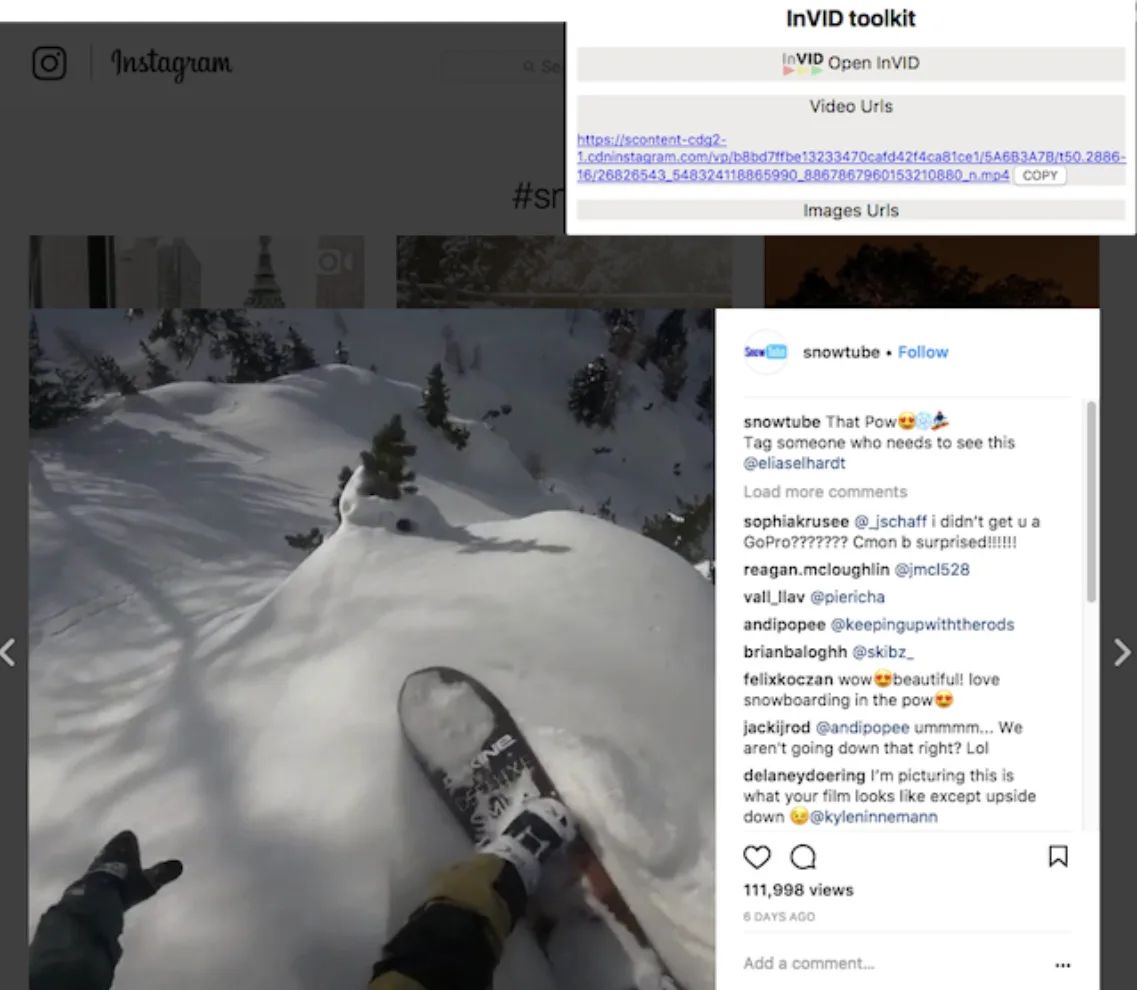
Use the InVID verification plugin to inspect a public video link and extract representative frames. Search several clear frames through Lens, especially ones with a landmark, sign, vehicle, or other distinctive detail.
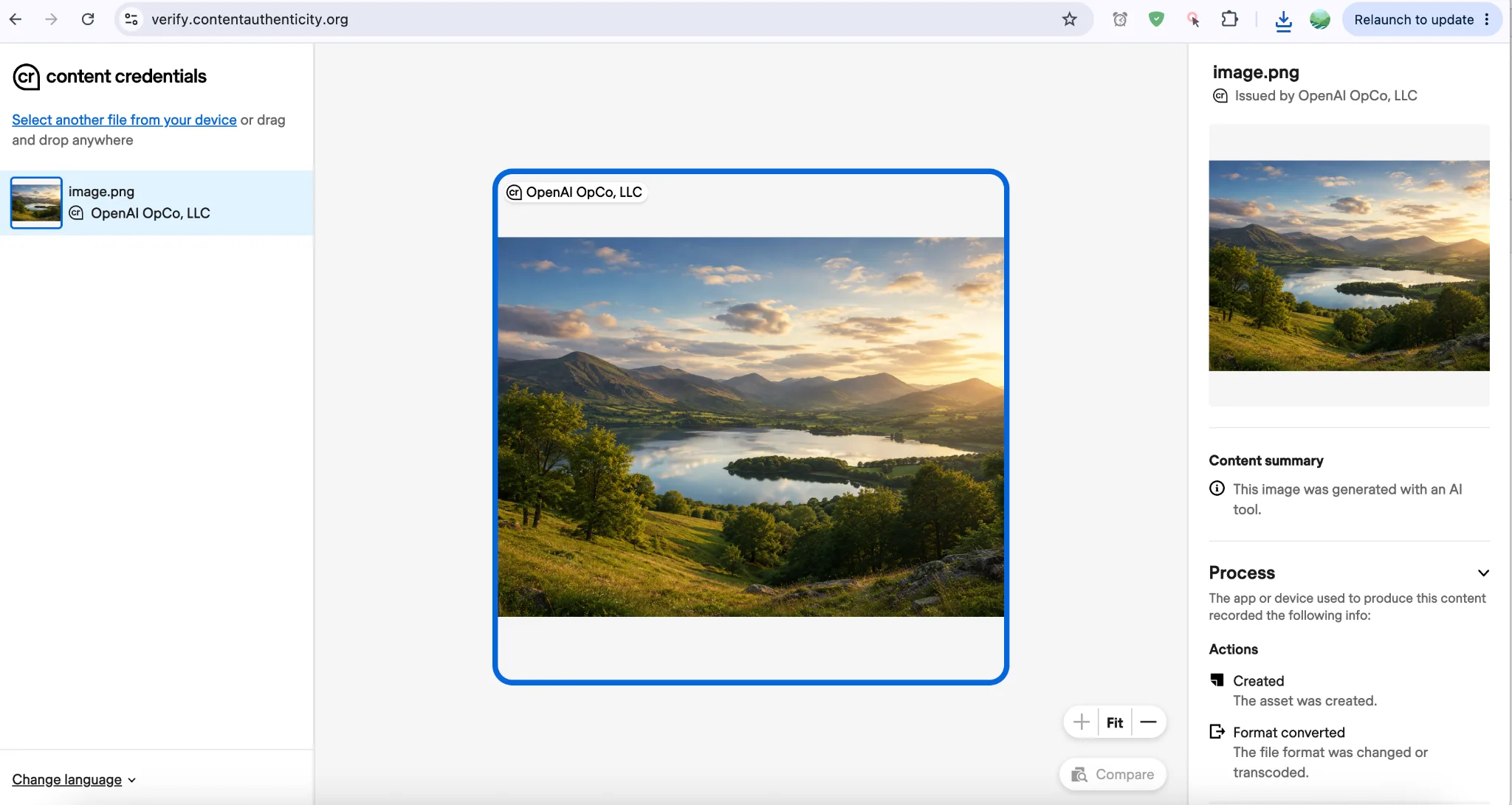
Content Credentials are tamper-evident records that can describe who or what signed a file, how it was made, and which edits were declared. They provide provenance; they are not a universal AI detector.
“No credentials found” proves nothing by itself. Metadata may be absent, stripped by a platform, or never added. It does not establish whether the media is authentic.
Open Content Credentials VerifySome AI tools add invisible watermarks or records identifying how a file was made. OpenAI Verify checks for supported OpenAI signals, while Gemini checks for Google’s SynthID watermark. A positive result can identify AI use; an absent signal does not prove the file is human-made.
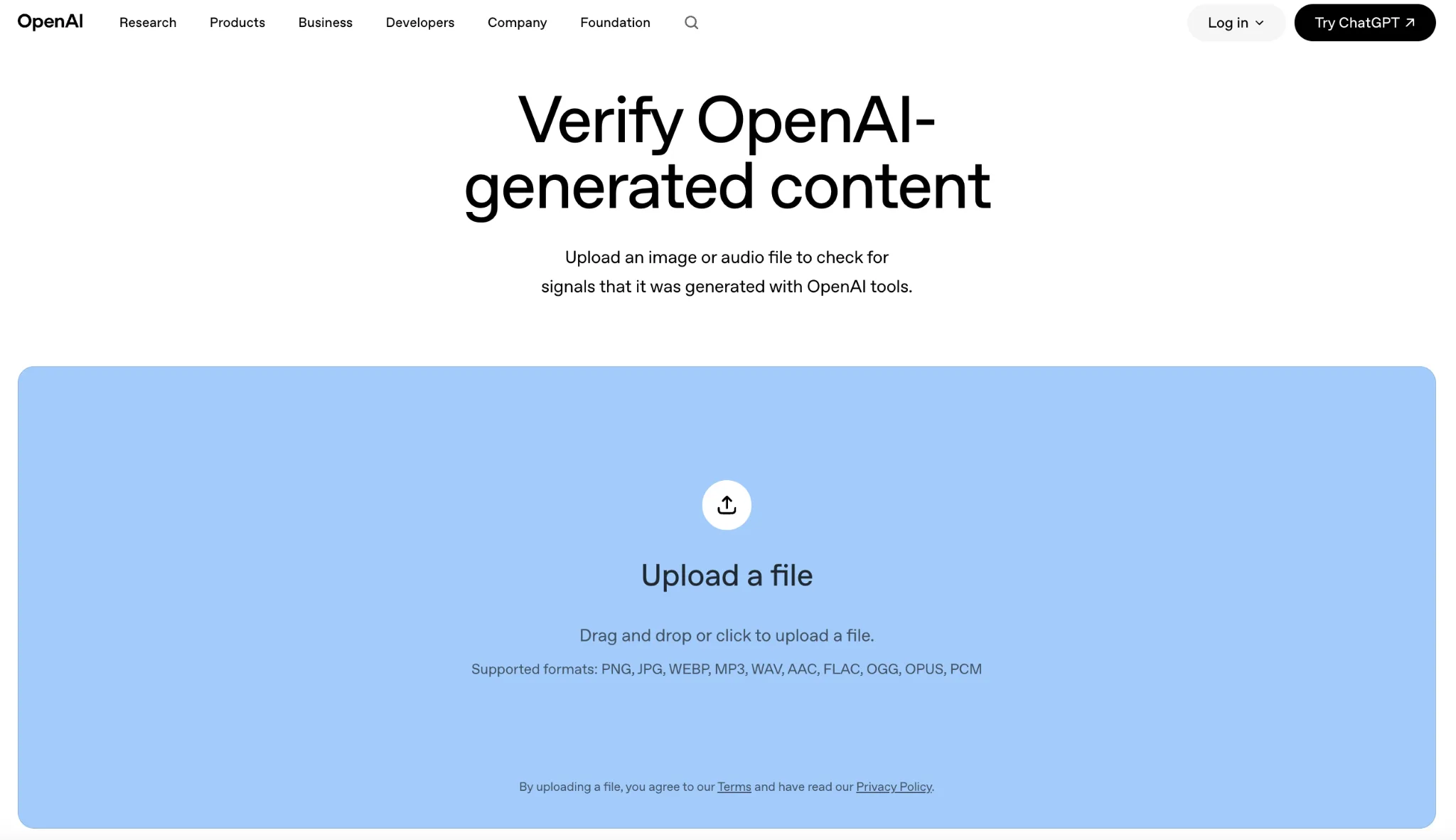
Open the verifier and upload one image or audio file. The original download preserves more useful signals than a screenshot or converted copy.
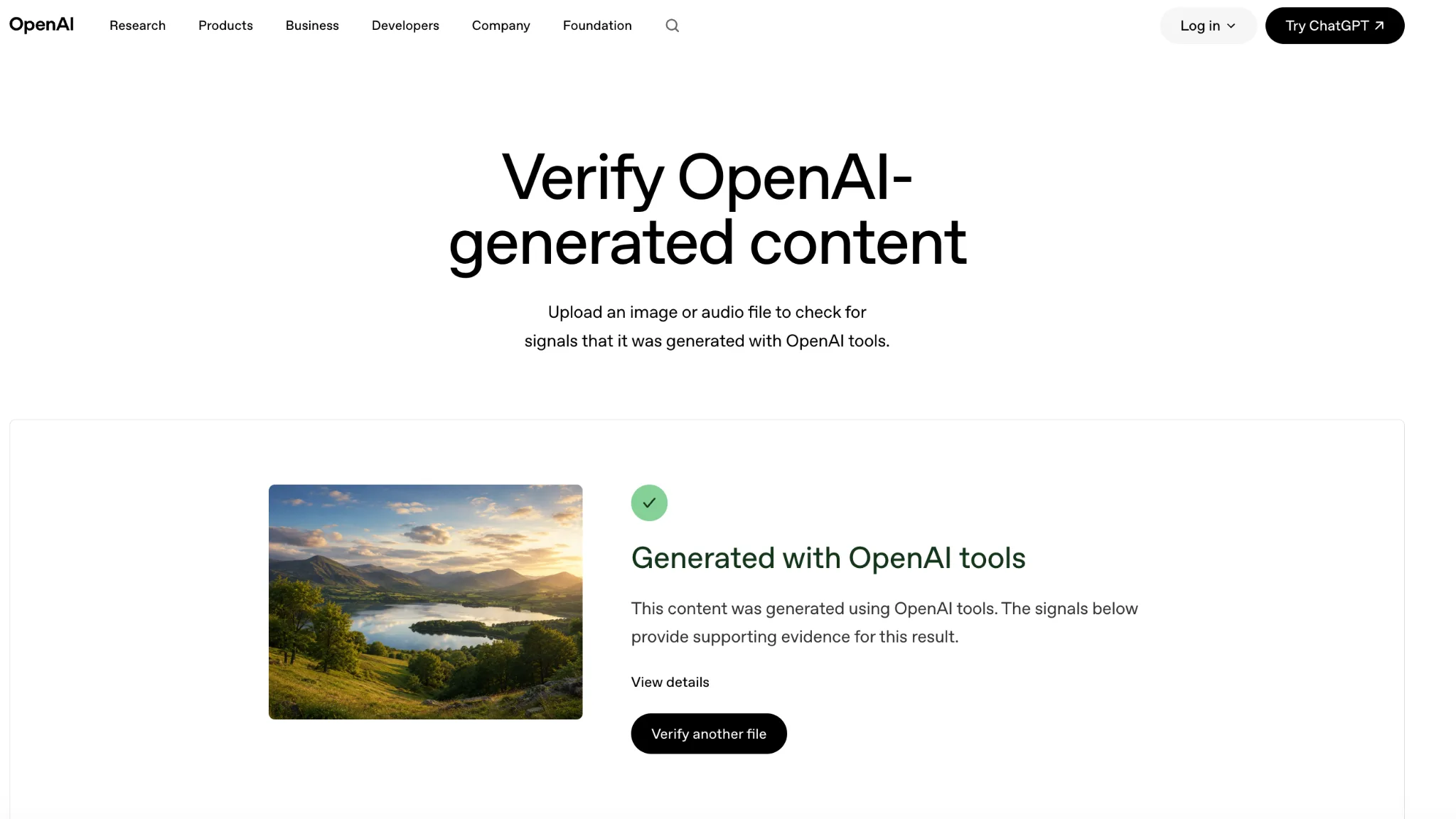
This example reports that the file was generated with OpenAI tools. A positive result supports origin, but it does not establish the truth of a caption or claim.
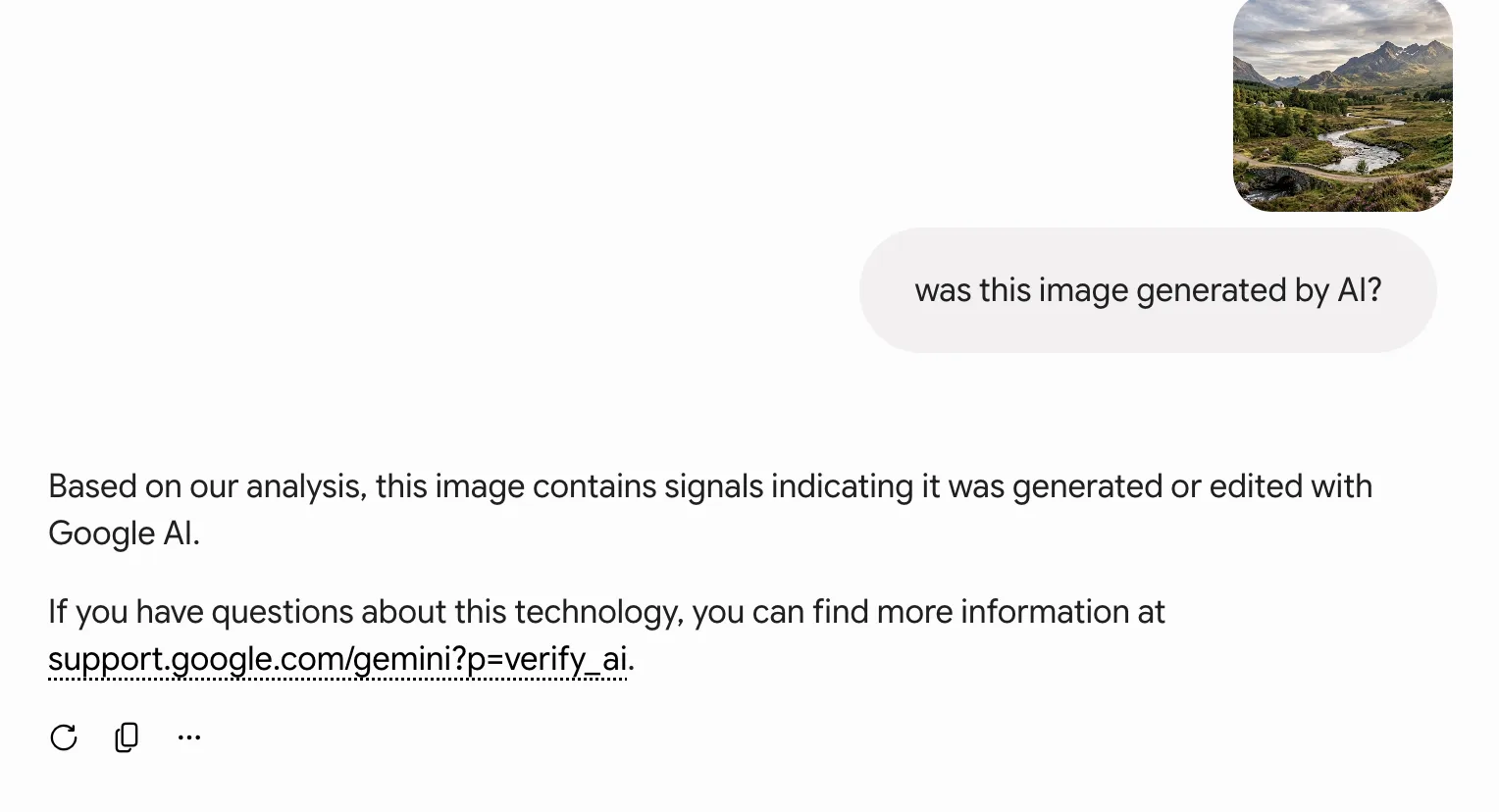
Upload the file to Gemini and ask whether it was created or altered with Google AI. This example reports that Google AI signals were found.
DeepFake-O-Meter is a University at Buffalo research platform that can run image, video, or audio through several published detection models. Use it only on media you are permitted to share.
A detector score is evidence, not proof. Results can change with the model tested, compression, cropping, editing, video quality, or unfamiliar generation methods. A low signal does not clear a video; a high signal should be confirmed elsewhere.
Open DeepFake-O-Meter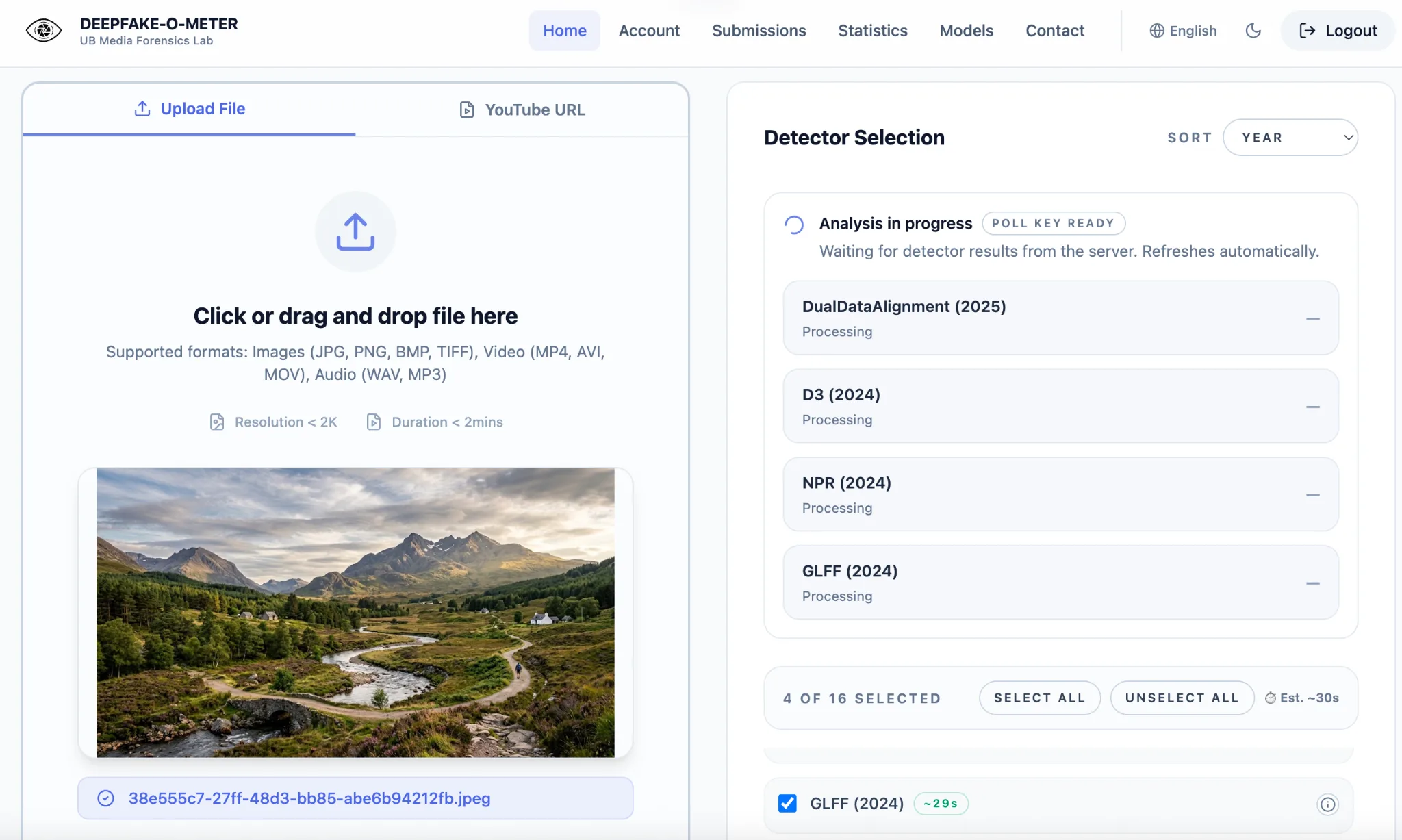
If a call, voice message, video call, or urgent request claims to come from someone you know, stop the interaction. Contact that person using a phone number or account you already trust, not contact details provided in the suspicious message.
For high-risk situations, agree on a private family verification phrase. Do not rely on a familiar voice, face, caller ID, or speaking style alone.
Still unsure? Label it unverified and do not pass it on as fact.